
Budgets in Timix.AI are not an end-of-month report — they are a live guardrail. Set a cap on a project, configure your alert thresholds once at the org level, and Timix.AI tells you the moment a project is trending over before the overrun becomes a problem.
How budgets work
Budgets are set per project in Budget Configuration on the project detail screen. You can cap hours, an amount, or both — and optionally set separate caps per billing type (T&M, Fixed, Overhead). Once a budget is in place, Timix.AI checks consumed vs. budgeted hours live as time is entered, so the health status is always current.
There are two kinds of limits:
- Soft limit (warning) — the project is flagged AT RISK when consumption crosses the warning threshold. Work can continue; the flag is a prompt to review.
- Hard limit (cap) — when the budget is fully consumed the project is marked OVER BUDGET.
Configure org-wide alert thresholds
The percentage values that trigger soft and hard alerts are set once for the whole organization. Open Organization → Settings and find the BUDGET ALERTS section. Set a Warning Threshold % (for example 80) and a Critical Threshold % (for example 100). Every project in the org uses these thresholds automatically — no per-project alert configuration needed.
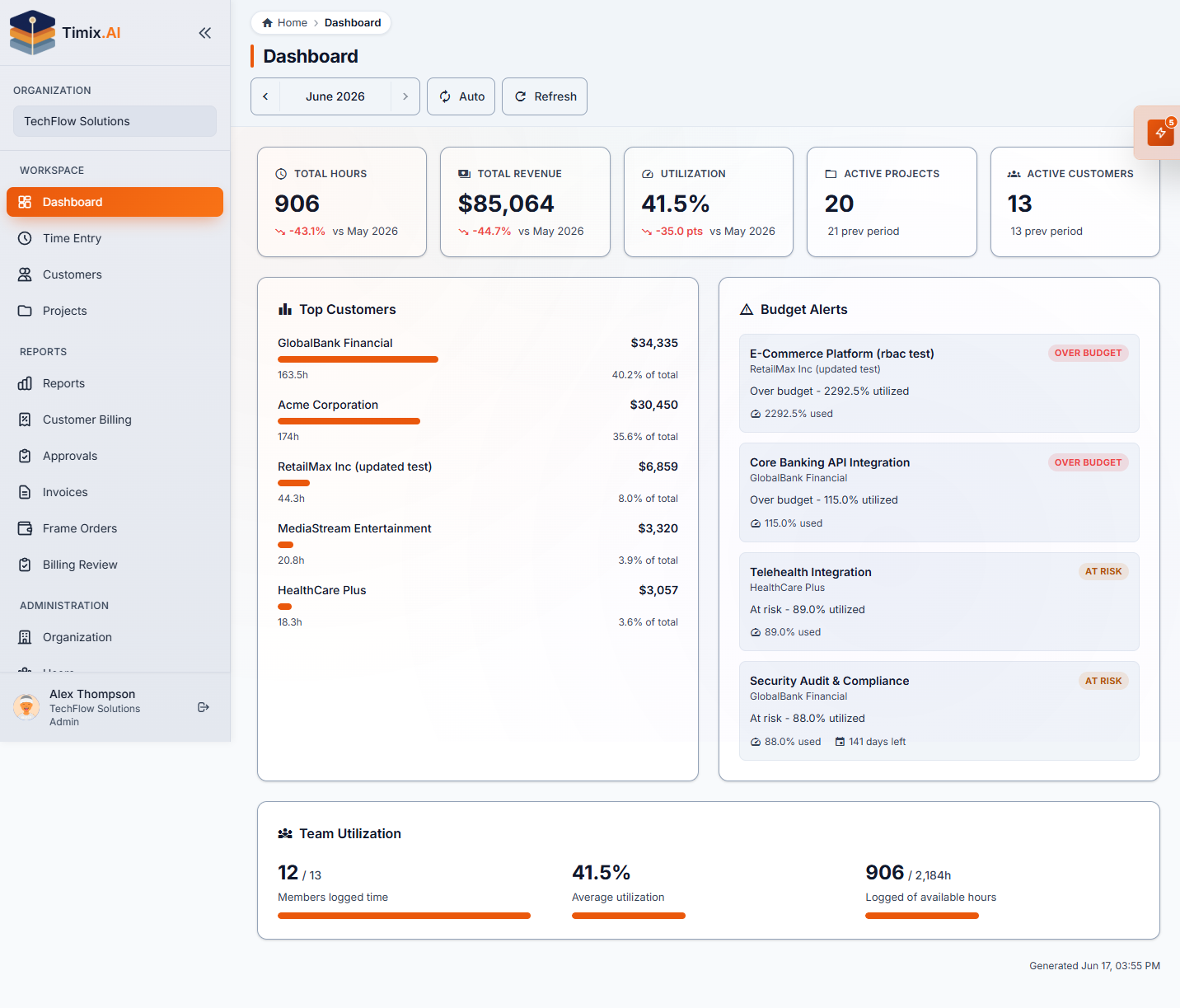
The Dashboard Budget Alerts panel
The Dashboard is where overruns surface. The Budget Alerts panel lists every project currently flagged AT RISK or OVER BUDGET, so you have a single place to check each morning. It sits alongside the org’s key KPIs — Total Hours, Total Revenue, Utilization, Active Projects, and Active Customers — giving you the full picture at a glance.
With budgets configured and thresholds set, the next natural step is understanding how the hours inside those budgets flow through approval and into billing.