
Timix.AI ships with two built-in AI tools you can turn on in seconds, plus an MCP server that lets your own AI assistant query your data without opening the app.
Enable the in-app AI
Go to Organization → Settings and scroll to AI Features. Two toggles control the experience:
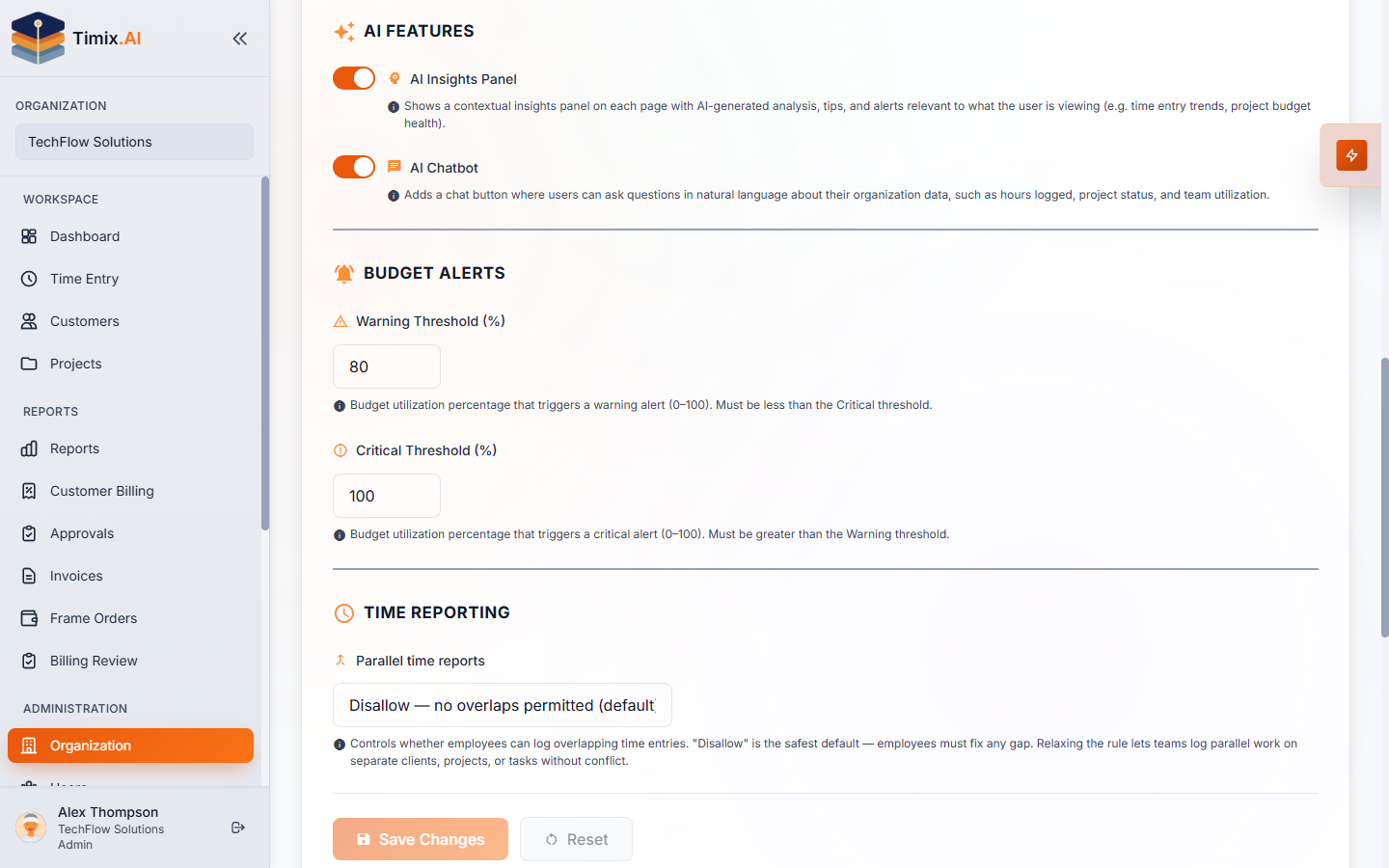
- AI Insights Panel (Business) — a contextual panel that surfaces AI-generated analysis, tips, and alerts for the page you’re on (budget and margin health, project status).
- AI Chatbot (Starter) — a Chat button with an “Ask me anything…” box; anyone can ask, in plain language, about hours logged, project status, or team utilization and get a direct answer.
Connect your own AI via the MCP server
Beyond the in-app assistant, Timix.AI exposes an MCP server so your own AI assistant — Claude, Cursor, or a custom agent — can reach your data headlessly. Point your MCP client at:
https://api.timix.ai/api/integration/v1/mcpand authenticate it with a Timix.AI API key (the tmx_… key you create on the API Keys page — see Working with the API). Your assistant can then answer questions grounded in your real time-tracking and project data, no manual exports.
Control what the AI can see
Access over MCP is governed per key. When you create the key, the “Allow sensitive financial & contact data over MCP” option is off by default — so a connected AI sees revenue, hours, and budgets, but cost rates, profit margins, and contact details (email, phone, VAT) are redacted automatically.
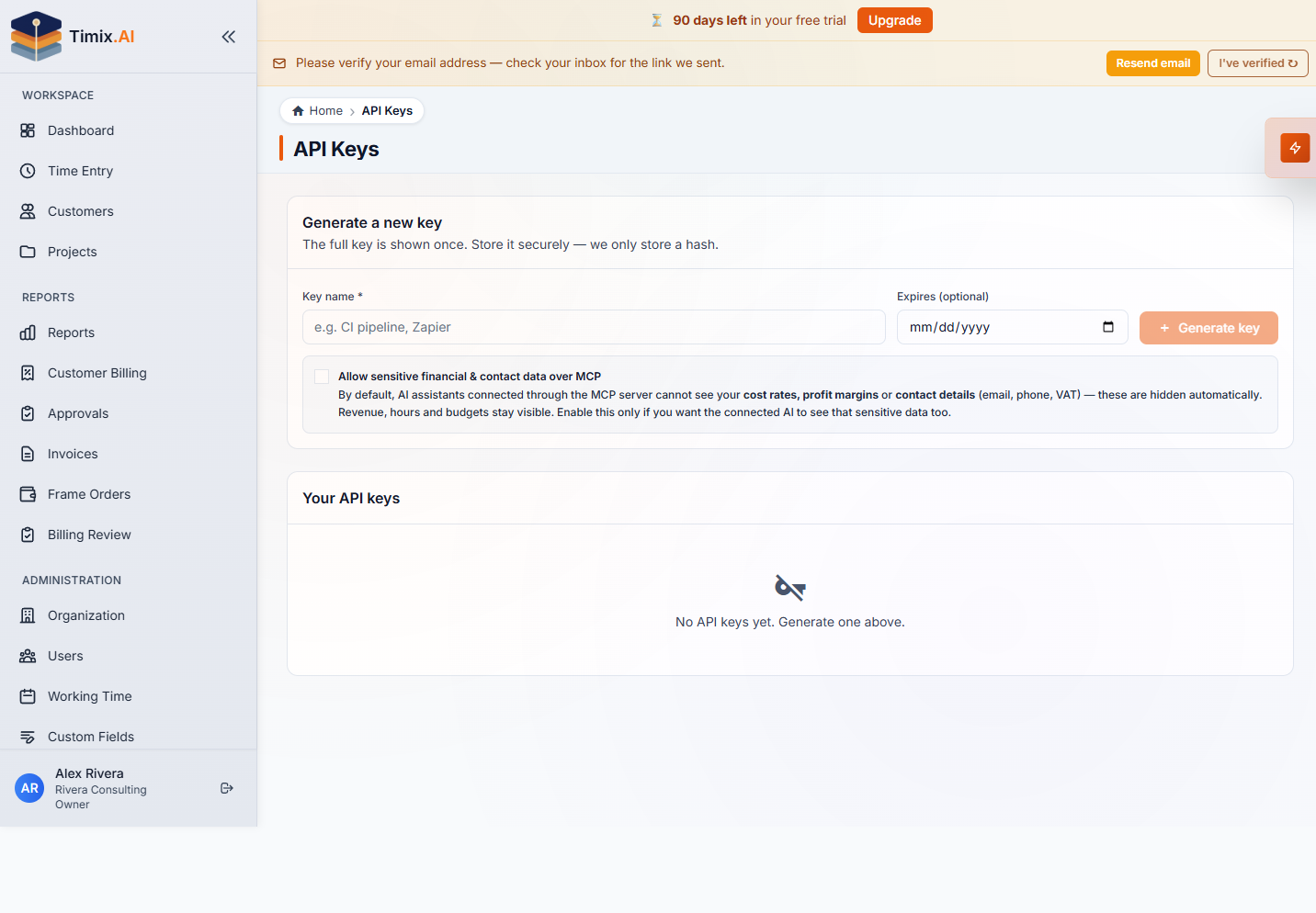
Turn the option on only for a key whose AI you trust with that sensitive data — so you decide exactly how much each connected tool can see.
What to try first
Enable the AI Insights Panel on a project or budget page to see health and margin alerts in context, open the Chat button and ask something like “which projects are over budget this month,” then — when you’re ready to bring your own AI — create an API key and connect it to the MCP endpoint.