
Standard records cover the basics, but every organization has data that doesn’t fit the defaults — a ticket reference on a time entry, a repository link on a project, an environment tag. Custom fields let you add exactly those fields so your team captures the right information without workarounds.
Define fields per entity
Open Organization → Custom Fields. Fields are grouped by entity — Time reports, Customers, Projects, Tasks, Sub-tasks — so you define them at the level where the data belongs.
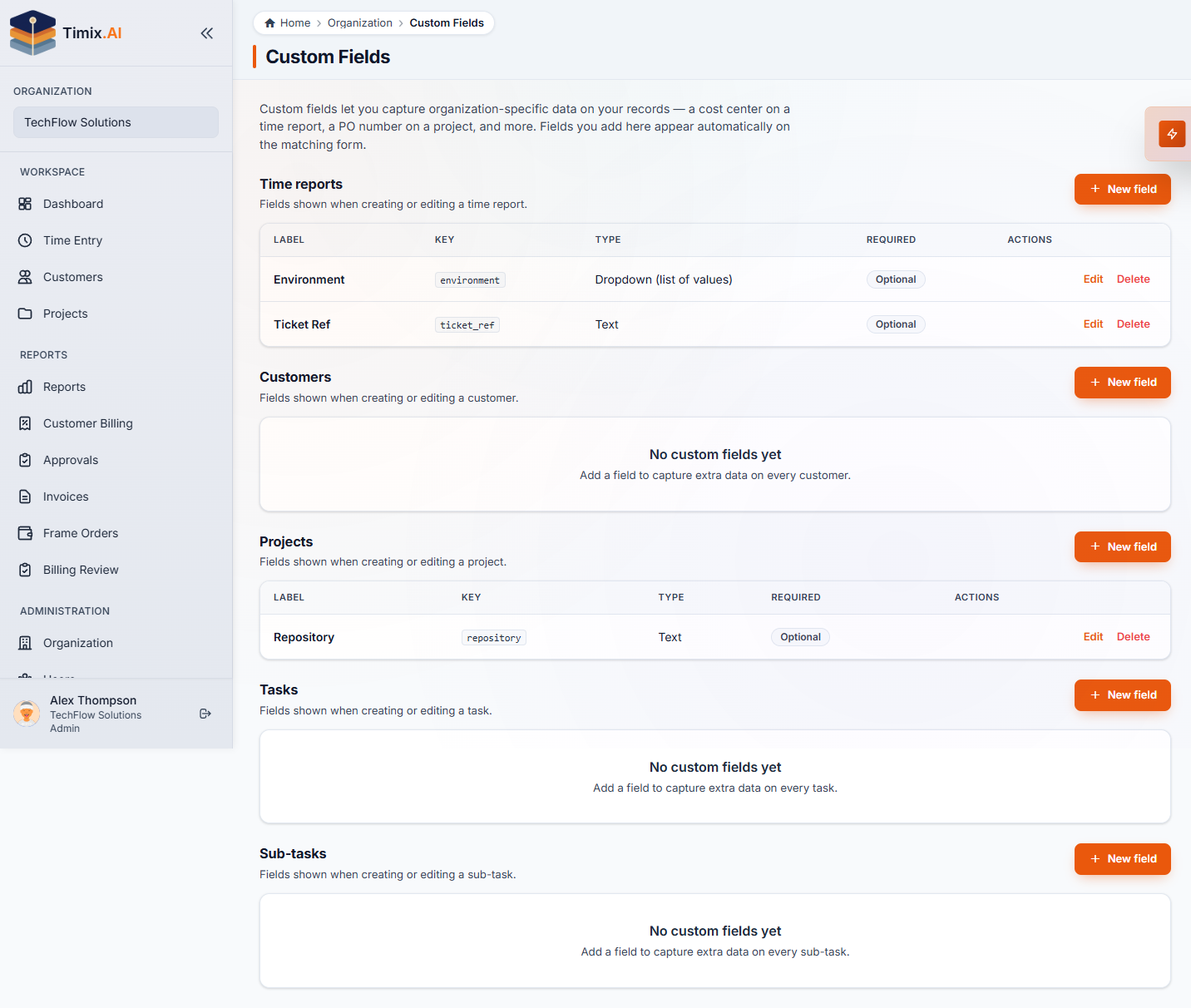
Each field has four properties you set when you create it:
- Label — what your team sees on the form (e.g. “Ticket Ref”, “Environment”, “Repository”).
- Key — the internal identifier used in exports and the API.
- Type — how the field is entered: Text for free-form input, or Dropdown (“Set of values”) for a fixed list of options.
- Required / Optional — whether the field must be filled in before saving.
Use New field to add a field to any entity group.
Fields appear automatically on forms
Once defined, a custom field appears automatically on the relevant entity’s form — no further setup needed. A “Ticket Ref” field on Time reports shows up every time someone logs time; a “Repository” field on Projects appears in the project form. Required fields enforce entry at save time, so the data is always there when you need it.
With the right fields in place, your records carry the context your organization needs — making reports, exports, and integrations genuinely useful instead of generic.