
Your workspace doesn’t have to look generic. Timix.AI lets you set a primary color and upload your logo so the app reflects your organization — not a default template.
Find the Branding section
Open Organization → Settings and scroll to the Branding section. Two controls live here: one for color, one for your logo.
Set your primary color
Type a hex value into the Primary Color field. A live Preview updates instantly so you can see exactly how the accent will look before you commit. When you’re happy, click Save Color — the change takes effect across the app immediately.
Upload your logo
Click Choose File, select a PNG or JPEG from your computer, and confirm. Your logo will then appear in the app in place of the default mark.
If your logo already includes your organization’s name as part of the design, turn on Show logo only (hide name) — this hides the text name so it isn’t displayed twice alongside the image.
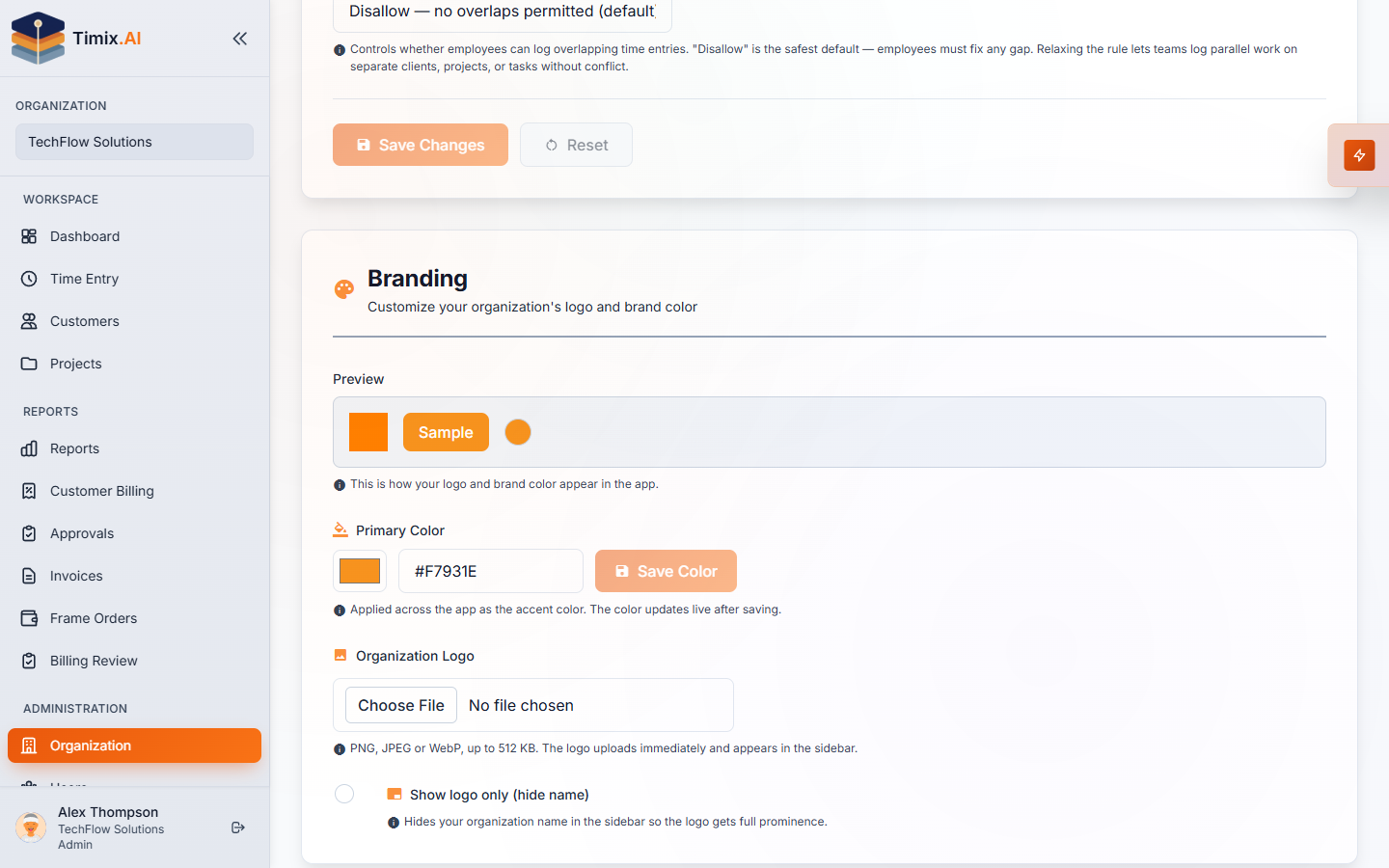
With your brand color and logo in place, the workspace feels like a natural extension of your team rather than an off-the-shelf tool.